Ad Blocker For FirefoxuBlock Origin for Firefox: Install, Settings and What It Blocks
uBlock Origin for Firefox: Install, Settings and What It Blocks
The short answer
uBlock Origin is a free, open-source ad and tracker blocker that works in Firefox. To install it, open the Firefox Add-ons site, search for uBlock Origin, and click Add to Firefox. Its default settings block known ad, tracker and malware domains from the start, so most people can leave them as they are. You can turn it off for one site using its toolbar icon.
Some links on this site are affiliate links: if you buy through one, the site may earn a commission at no extra cost to you. More about this.
Here is the short version of what this guide walks through:
- Find uBlock Origin on the Firefox Add-ons site and add it.
- Confirm it is running from the toolbar icon.
- Check the default filter lists it turns on.
- Adjust a few settings only if you need to.
- Turn it off for a site that will not load properly.
- Test what it blocks on a page you visit often.
- Know where it stops, such as with video ads inside some players.
If you have been dealing with pages full of video ads, pop-ups and autoplay, you know how much that gets in the way of reading or watching. Ads also slow pages down and can use up data on a phone connection. Many people switch browsers and then wonder whether their blocker will follow them. Your blocker may not carry over, so check before you assume it will.
This page covers the uBlock Origin extension on desktop Firefox: how to install it, what its settings do, and what it blocks by default. You do not need to be technical to follow along. Each step is short, and you can stop after the install if the defaults suit you.
Why uBlock Origin Works in Firefox
Firefox runs extensions, and uBlock Origin is one you can install straight from the official Firefox Add-ons site at addons.mozilla.org. Search for "ublock origin" there, check that the listing is published by the developer, and click "Add to Firefox." That is the safe route. Avoid third-party download sites.
Firefox still supports the full version of the extension, and that is the main reason many users choose it. The full version can use advanced filtering, so it can block more than the simpler tools that come with some browsers. For most users, that means fewer ads, fewer pop-ups and less tracking across the web.
Is it the same as other blockers with similar names?
Not always. Several products use names like "uBlock," "Adblock" or "Ad Block," and they are not the same thing. Some are built by different developers and work differently. Before you install, look at the developer name on the add-on page. If you want the uBlock Origin described here, the listing should say so clearly.
If you are unsure which blocker to pick, the other pages in this hub compare them side by side.
How to Install uBlock Origin on Firefox
Installing uBlock Origin takes about a minute. It is free, and you do not need an account. The steps below work on Firefox for desktop.
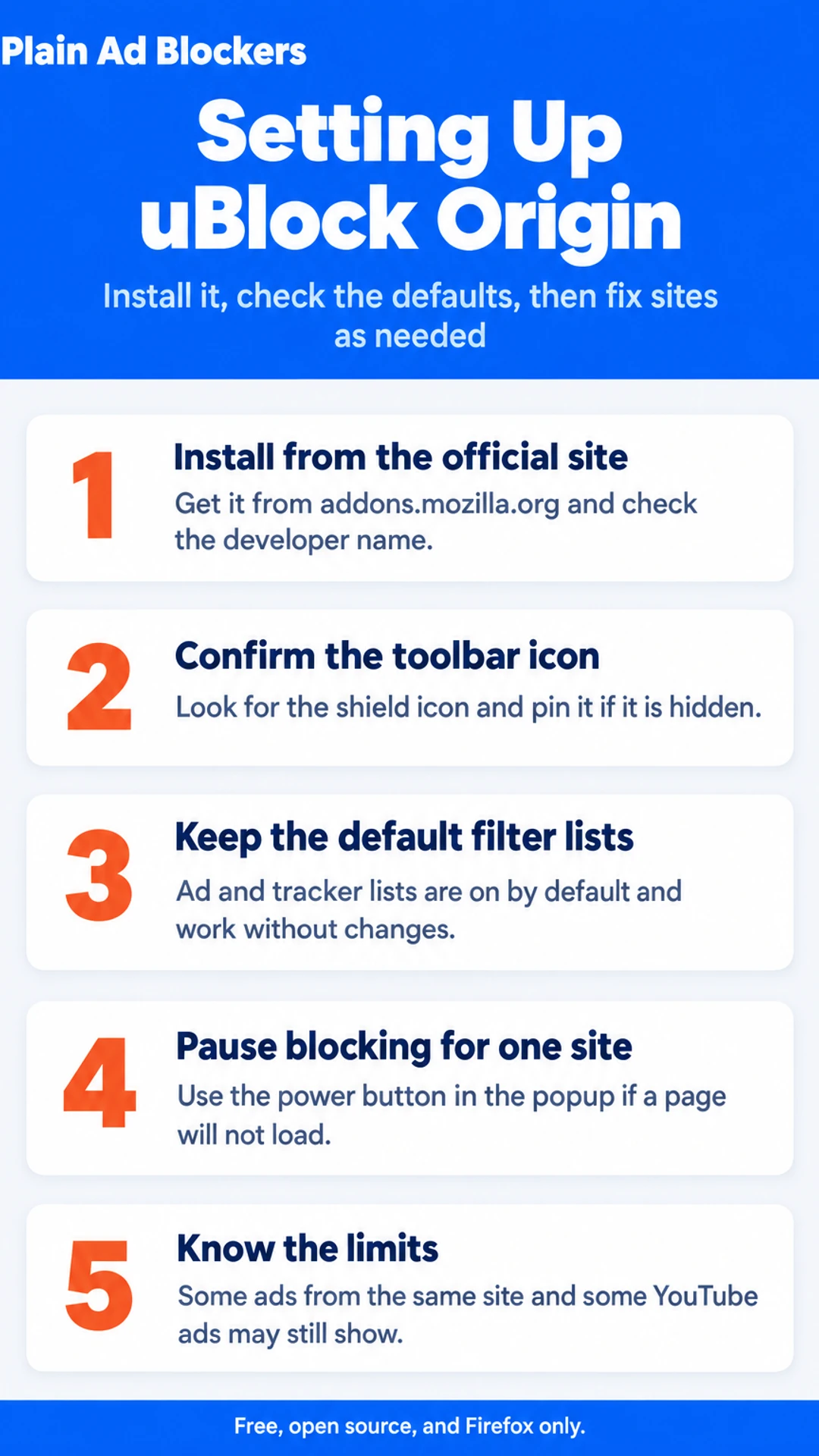
- Open the Firefox Add-ons site at addons.mozilla.org and search for "uBlock Origin."
- Check the publisher before you install. The listing should show the uBlock Origin developer, not a similar-sounding name. Plain Ad Blockers is the name this page uses for the blocker it covers, so treat any other publisher with suspicion.
- Click "Add to Firefox." A permissions prompt appears. Read it, then click "Add" to confirm.
- Look for the shield-style icon in the toolbar. If you do not see it, click the puzzle-piece extensions menu and pin uBlock Origin so it stays visible.
- Reload any tabs that were already open. Blocking applies to pages as they load, so a refresh makes sure the ads on those pages are caught.
Does it work out of the box?
For most users, yes. The default settings block a large share of ads, pop-ups and trackers without any changes. Click the icon to see how many items were blocked on the current page. You only need to open the settings if a site breaks, and you can turn blocking off for that one site from the same panel.
Default Settings and What They Do
When you first install uBlock Origin on Firefox, it works straight away. You do not need to change anything. The defaults are set to balance blocking with keeping websites working, and for most everyday browsing they are the right choice.
What are the filter lists?
Filter lists are the rules uBlock Origin uses to decide what to block. Each list is a long catalogue of known ad and tracking domains, maintained by volunteers and groups who track them. By default, the lists for ads and trackers are switched on, along with a few for malware and annoyances.
To see them, open the uBlock Origin icon in the Firefox toolbar, click the settings gear, and choose the Filter lists tab. You can see which lists are active and when they were last updated. Leave them on unless you have a specific reason to change them.
What is cosmetic filtering?
Some ads are not loaded from a blocked address, so network blocking alone misses them. Cosmetic filtering hides the leftover boxes and page elements, like empty ad slots or sponsored panels. It is on by default and works quietly in the background.
What about dynamic filtering and advanced mode?
Dynamic filtering and advanced mode are off by default. They give you fine control over which requests each site may make, through a grid in the popup. That is useful if you want to tune things closely, but it is also easy to break a page with it. If you only want ads and trackers gone, leave both off.
Most readers will find the defaults do what they need. Keep them unless a particular site gives you trouble, and then turn off blocking for that one site only.
What uBlock Origin Blocks and What It Cannot
uBlock Origin is a free extension for Firefox, and it does its main job well. It blocks display ads, pop-up windows and the known tracking scripts that follow you from site to site. Most of that happens quietly, so you usually just notice that pages load faster and look cleaner.
It also blocks many known malicious and scam domains. It does this through its filter lists, which are regularly updated lists of addresses known to host ads, trackers or dangerous content. This is not the same as full antivirus protection, but it does stop a fair number of bad sites before they load.
Will it block every ad?
No, and it helps to know the limits before you install it. You may still see:
- Ads served from the same site as the content you are reading, which are hard to separate from the page itself
- Some YouTube ads, since YouTube serves its ads from the same place as its videos. The YouTube page covers your options and the limits in more detail.
Does it work outside Firefox?
Only inside Firefox. uBlock Origin does not cover other apps on your device, so a game or a desktop app showing ads will not be affected.
Benefits and limits at a glance
| Area | What it does | What it does not do |
|---|---|---|
| Display ads and pop-ups | Blocked by default | Ads from the same site as content |
| Trackers | Blocks known tracking scripts | Not a full antivirus |
| Malicious domains | Blocks listed bad sites | Covers Firefox only |
| YouTube ads | Partly handled | Not reliably blocked |
Turning It Off for a Site and Fixing Breakage
Sometimes a page or a video player will not load properly with uBlock Origin running. A login form stays blank, a video refuses to play, or a checkout button does nothing. This is usually the blocker stopping something the site needs, and you can fix it without removing the extension.
The quickest fix is to pause blocking for that one site:
- Open the site that is misbehaving.
- Click the uBlock Origin icon in the Firefox toolbar.
- Click the large power button in the popup. This turns blocking off for that site only.
- Reload the page and check whether it works now.
- When you are done, open the popup again and turn blocking back on for the site.
If the site still breaks after you pause blocking, it may be detecting blockers and refusing to work with them. In that case you can add the site to your trusted list so the blocker leaves it alone. Use this only for sites you actually trust, since an exception means ads and trackers there will load as normal.
For more detail, see how to turn off an ad blocker for one site in Firefox. The same toolbar popup shows what was blocked on the page, which helps you spot which filter is causing the trouble.
Is It Safe, Free and Worth Using?
uBlock Origin is free and open source. There is no paid version, no paywall and no upgrade prompt pushing you toward a subscription. The code is public, so anyone can check what it does.
Still, it is worth a quick check before you install any extension. Here is what to do:
- Install it only from the official add-ons site, addons.mozilla.org. Avoid download links from random sites.
- Read the permissions list the install prompt shows. A blocker needs to read and change data on the sites you visit, so that permission is expected. Be wary of anything asking for more than that.
- Check the publisher. The Firefox listing shows who published the add-on.
Some people compare uBlock Origin with Adblock Plus. The main difference is that Adblock Plus has an acceptable ads program turned on by default. That lets some companies pay to get their ads past the block lists. You can switch it off in settings, but you have to know to do it. If you want the full picture, see our page on Adblock Plus on Firefox.
uBlock Origin also works in Firefox for Android, since Firefox for Android supports extensions. For the phone setup, see Firefox for Android ad blocking.
What hands-on reviewers found
These are other people's hands-on tests, summarised and credited to them. Watch the full videos for their complete reviews.
CoolTechZone: I found the best AD BLOCKER extension | 3 Tools Compared
The reviewer thinks Surfshark's CleanWeb is the best all-round ad blocker across devices, Total AdBlock is the best simple browser-only option, and Adblock Plus should be avoided by default because of its acceptable ads program and higher r
- Adblock Plus enables an acceptable ads program by default, letting companies like Google or Amazon pay to bypass block lists. The reviewer had to disable this in settings. (at 1:04)
- Adblock Plus uses more CPU and memory than other ad blockers. The reviewer, who keeps many tabs open, felt the drag and removed it after about half an hour. (at 1:20)
- Total AdBlock worked straight away after install and a tab refresh. Display ads, pop-ups, cookie banners and YouTube pre-rolls were all gone. (at 1:38)
Frequently asked questions
How do I install uBlock Origin on Firefox?
Open the Firefox Add-ons site (addons.mozilla.org), search for uBlock Origin, and click Add to Firefox. Confirm the permission prompt. The icon appears in the toolbar, and you can click it to see what is being blocked on the current page. No account or sign-up is needed.
Is uBlock Origin on Firefox free?
Yes. uBlock Origin is a free, open-source extension. You install it from the official Firefox Add-ons site and use it without a subscription, paywall or upgrade prompt. Check that the listing you install is by the uBlock Origin developer, since copycat extensions with similar names exist.
What does uBlock Origin block by default?
By default it blocks ads, tracking scripts and known malicious domains using built-in filter lists. It also hides many cookie banners and pop-ups. Video ads on sites such as YouTube are not always fully blocked, so results can vary by site and change over time as the site updates.
Will uBlock Origin break websites?
Sometimes. A blocked script can stop a page menu, login form or video player from loading. Click the uBlock Origin icon and use the on/off switch for that site to allow its content. You can also open the dashboard and add the site to the whitelist so it stays unblocked.
Is uBlock Origin the same as uBlock?
No. uBlock Origin is a separate project from the original uBlock, which was developed by a different person and is no longer maintained. The name uBlock Origin is the one most people mean when they search for an ad blocker for Firefox. Install only the one named uBlock Origin.
Wrapping up
uBlock Origin is free, installs in a minute from the official Firefox Add-ons site, and blocks most ads and trackers with its default settings. If a site breaks, switch it off for that page instead of removing the extension. Have you set up uBlock Origin on Firefox? Tell us in the comments which site gave you the most trouble.
Visit the official site if you also want an ad and cookie blocker that works across your devices, not only in the browser. The Surfshark Starter plan page describes CleanWeb, its ad and cookie blocker, along with a VPN and Alternative ID, and it notes a 30-day money-back guarantee.