Ad Blocker For FirefoxAdblock Plus on Firefox: Acceptable Ads, Resource Use and Whether to Use It
Adblock Plus on Firefox: Acceptable Ads, Resource Use and Whether to Use It
The short answer
Adblock Plus is a free extension you can add to Firefox to block most ads and some trackers on web pages. It is available from the Firefox add-ons site. By default it allows some ads under its acceptable ads program, which companies can pay to join. You can turn that off in the extension's settings. Some users report higher memory and CPU use than lighter blockers, so it is worth testing on your own machine.
Some links on this site are affiliate links: if you buy through one, the site may earn a commission at no extra cost to you. More about this.
Here is the short version of what to do:
- Open Firefox and go to the Firefox add-ons site.
- Search for Adblock Plus and check the publisher before you install.
- Add it to Firefox and confirm the permissions it asks for.
- Open the extension's settings and find the acceptable ads option.
- Turn off acceptable ads if you want the strictest blocking.
- Reload a few pages you visit often and check that they still work.
- Watch how your browser feels over a day, and remove it if it slows things down.
If you have tried ad blockers before, you may already know the frustration. Pages are cluttered with video ads, pop-ups and autoplay that start before you have read a line. Ads also slow pages down and eat into your data on a phone. You want a cleaner experience, and you want to know whether the tool you pick is safe and whether it will still work after you switch to Firefox. This page aims to give you that. It covers what Adblock Plus does on Firefox, how its acceptable ads program works and how to turn it off, and what is known about its resource use. Along the way, I will point you to other pages in this guide for mobile, Chrome, YouTube and uBlock Origin, so you can decide with the full picture.
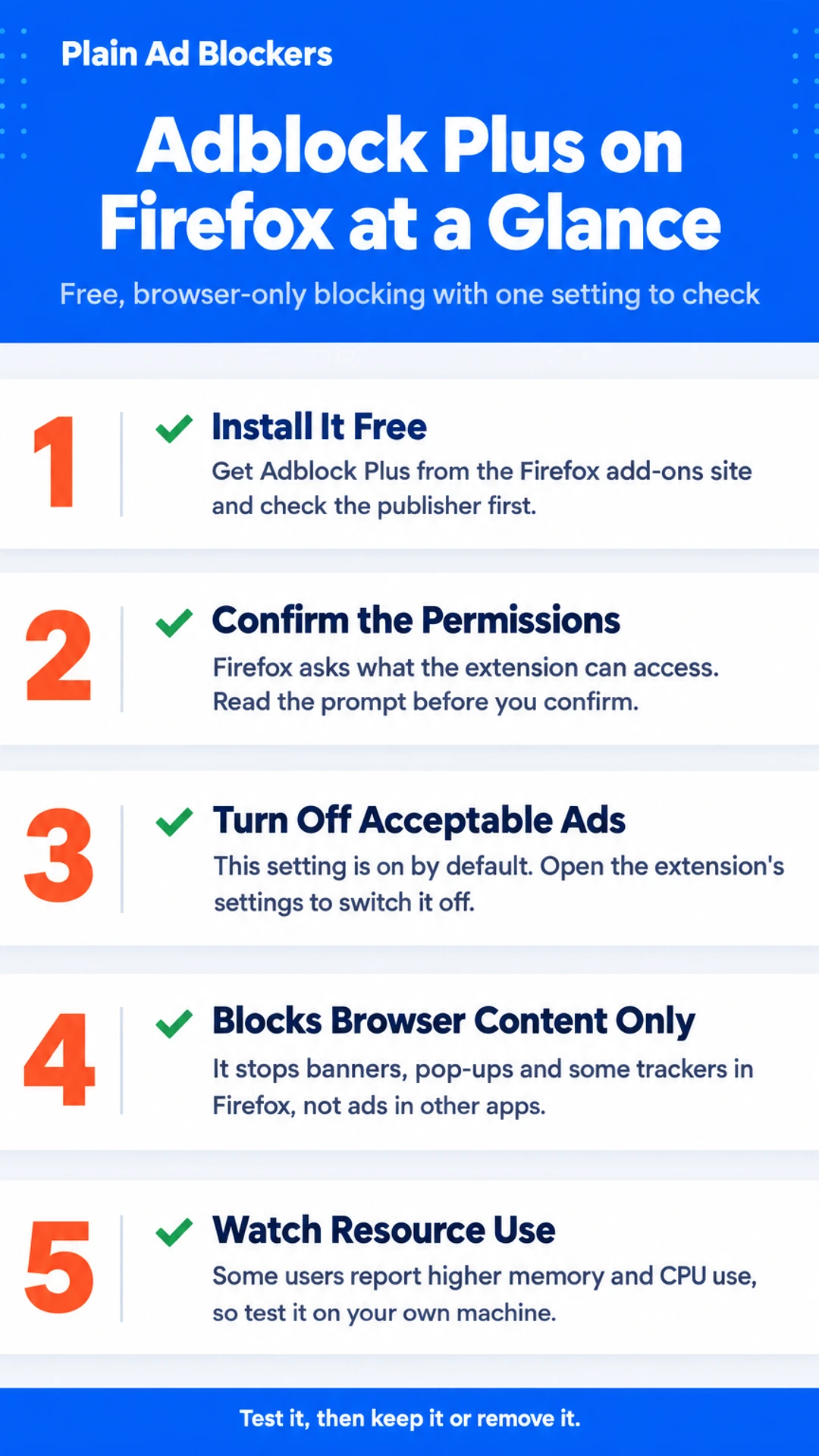
Adblock Plus on Firefox at a glance
| Aspect | What the article says |
|---|---|
| Price | Free to install |
| Install source | Firefox add-ons site |
| Acceptable ads | On by default, can be turned off |
| Resource use | Reported higher than some blockers |
| Coverage | Browser only, not other apps |
What Adblock Plus Does on Firefox
Adblock Plus is an extension you add to Firefox. Once it is installed, it checks each web page you load against lists of known ad and tracker addresses, called block lists, and stops the matching content before it shows up. That usually means banner ads, pop-up ads and some video ads, along with a number of trackers that follow you from one website to the next.
It only works inside the browser. It will not touch ads in other apps on your computer, in mobile games, or on a smart TV. If you want that wider coverage, you need a different kind of tool.
Here is roughly what it covers:
- Display and banner ads on web pages
- Pop-ups and some overlay ads
- Known tracking scripts
- Some video ads, including on YouTube, though YouTube changes its ad delivery often and blockers can lag behind
Adblock Plus is one of several blockers. uBlock Origin is a common alternative, and many people prefer it because it is light on memory and uses the same kinds of block lists. The main difference you will notice with Adblock Plus is its acceptable ads program, which is on by default in its settings. You can turn it off, and the next section explains how.
How to Install Adblock Plus in Firefox and Check It Works
Installing Adblock Plus takes about a minute. It is an extension, so you add it from the Firefox add-ons site rather than from a web page.
Here is how to do it:
- Open Firefox and go to addons.mozilla.org. You can also reach it from the Firefox menu under Add-ons and themes.
- Search for "Adblock Plus".
- Select the extension, then choose Add to Firefox.
- Confirm the permissions prompt. Firefox asks before any extension gets access to your browsing.
- When it finishes, the Adblock Plus icon appears in the toolbar.
Does it actually block ads?
Open a page you know is full of ads and reload it. Ads should be gone, or at least most of them. If a banner or video still shows, check the icon. A number on it means blocking is active on that page.
Some pages need a refresh before blocking takes effect. This is common if the page loaded before the extension was installed. Reload the tab once and check again. A video player that has already started may keep its ad until you reload the whole page.
If an ad still gets through on a site you trust, that is a separate question. You can handle it site by site, as covered on the page about turning off a blocker for one site.
Acceptable Ads: What They Are and How to Turn Them Off
Adblock Plus has a setting called Acceptable Ads. It is switched on by default. Under this program, some companies pay to have their ads shown even when you use the blocker. The idea is that these ads are less annoying than the rest. The catch is that the list of approved ads is run by a commercial arrangement, not by you, so the blocker is not stopping everything you might expect.
A reviewer on the CoolTechZone video noted the same thing. They pointed out that the program is on by default and that you have to disable it yourself in settings. They also said that companies such as Google or Amazon can pay to get past the block lists. That is why they recommended avoiding Adblock Plus unless you turn this off.
If you want to stop the program, here is how to do it in Firefox:
- Click the Adblock Plus icon in the toolbar, or open the add-on from the Extensions menu.
- Open the extension's options or settings page.
- Find the Acceptable Ads section.
- Turn off the option to allow non-intrusive ads.
Check this setting again after each update. Extension updates can switch options back on, and it is easy to miss. Looking at the setting once a month is a simple habit that keeps your browsing the way you chose.
Resource Use: Memory, CPU and Speed on Firefox
Ad blockers are meant to make pages lighter, but the extension itself uses some memory and processing time. How much depends on the extension and on how many tabs you have open.
In CoolTechZone's video, the reviewer said Adblock Plus used more CPU and memory than the other blockers they tested. They keep many tabs open, and they felt the slowdown. After about half an hour they removed it. That is one person's experience on their own setup, not a measured benchmark, so treat it as a reason to check rather than a verdict.
How can I check whether Adblock Plus slows my browser?
You can see this for yourself with Firefox's built-in Task Manager:
- Open Firefox and type
about:performancein the address bar, then press Enter. - Note the memory and energy numbers for your open tabs and extensions.
- Open the tabs you normally use, then wait a few minutes and read the numbers again.
- Turn Adblock Plus off from
about:addons, reload the same tabs, and compare. - Repeat with your usual number of tabs, since the drag often shows up only when many are open.
Compare the same pages in both runs. A news site with heavy scripts will look different from a plain text page, so it helps to test a few kinds of sites.
Blocking YouTube Ads, Breaking Sites and Turning the Blocker Off
Adblock Plus can block many YouTube ads on Firefox, but results vary. YouTube changes how it delivers ads often, so an ad that was blocked last week may get through today. If you still see video ads, reloading the page or updating the extension sometimes helps. For more on this, see our guide to stopping YouTube ads on Firefox.
Blocking does not always go smoothly. Some websites check for blockers and refuse to load, and some video players stop playing or show a blank box. You may notice this on a site you trust, such as a news site or a streaming service. This is not unusual, and it does not mean your browser is broken.
The fix is usually a per-site switch. Here is how it works:
- Open the page that is not working.
- Click the Adblock Plus icon in the Firefox toolbar.
- Choose the option to disable the blocker on that site.
- Reload the page.
Only the site you chose is affected. Everywhere else stays protected. If you want more detail on this, read our separate guide to turning off an ad blocker for one site in Firefox.
I usually switch the blocker off for a site only when something is clearly broken, and turn it back on afterwards. That habit keeps most of the cleaner browsing and only lets through what I've chosen to trust.
Is It Free, Is It Safe, and Should You Use It?
Adblock Plus is free to install on Firefox. You do not need to pay, sign up or donate to use the basic extension. Any paid or donation options are separate from it, and you do not need them to block ads.
Before you install anything, look at the permissions it asks for. Firefox shows these on the add-on page and again during install. Read them, then read the separate page on Adblock Plus safety for what is known about how it handles data.
Adblock Plus is a reasonable choice if you want a familiar, simple option that works with little setup. Many people already know the name, and it does the basic job of stopping display ads and video pre-rolls on most sites.
uBlock Origin may suit you better if you care about lower resource use and more control over what gets blocked. It gives you finer settings, and some users prefer it for that reason.
The sources I looked at do not give a head-to-head measurement of memory or CPU use between the two. So treat any claim about which one is lighter as unproven until you check it yourself.
One reviewer, CoolTechZone in "I found the best AD BLOCKER extension | 3 Tools Compared", advises avoiding Adblock Plus by default. Their concerns were that its acceptable ads program is on by default, and that they felt its CPU and memory use while keeping many tabs open. They turned the acceptable ads setting off and removed it after about half an hour. That is one person's experience on one setup, not a general test.
If you decide to use Adblock Plus, check its settings and decide for yourself whether you want acceptable ads turned on.
Adblock Plus compared with uBlock Origin
| Blocker | Best known for | Main trade-off |
|---|---|---|
| Adblock Plus | Familiar, simple setup | Acceptable ads on by default |
| uBlock Origin | Lower resource use, finer control | Resource comparison Not stated |
What hands-on reviewers found
These are other people's hands-on tests, summarised and credited to them. Watch the full videos for their complete reviews.
CoolTechZone: I found the best AD BLOCKER extension | 3 Tools Compared
The reviewer thinks Surfshark's CleanWeb is the best all-round ad blocker across devices, Total AdBlock is the best simple browser-only option, and Adblock Plus should be avoided by default because of its acceptable ads program and higher r
- Adblock Plus enables an acceptable ads program by default, letting companies like Google or Amazon pay to bypass block lists. The reviewer had to disable this in settings. (at 1:04)
- Adblock Plus uses more CPU and memory than other ad blockers. The reviewer, who keeps many tabs open, felt the drag and removed it after about half an hour. (at 1:20)
- Total AdBlock worked straight away after install and a tab refresh. Display ads, pop-ups, cookie banners and YouTube pre-rolls were all gone. (at 1:38)
Frequently asked questions
Does Adblock Plus work on Firefox?
Yes. Adblock Plus is available as an extension for Firefox and works on desktop. It blocks ads on web pages once it is installed and enabled, and you can manage it from the extensions menu in the browser toolbar.
What is the acceptable ads program in Adblock Plus?
It is a list of ads that Adblock Plus allows by default because they meet certain standards for size and placement. Companies can pay to be on that list, so some ads that would otherwise be blocked still show. You can turn this off in the extension's settings if you want all ads blocked.
How do I turn off acceptable ads in Adblock Plus on Firefox?
Open the Adblock Plus settings from the extensions menu or the settings page, look for the acceptable ads option, and switch it off. Reload the page afterward so the change applies to the sites you are viewing.
Does Adblock Plus slow down Firefox?
It can use more processor and memory than some other blockers, especially with many tabs open. On an ordinary machine with a few tabs, the effect is usually small. If your browser feels slow, try disabling other extensions first to find the cause.
Is Adblock Plus free to use on Firefox?
The extension itself is free to install from the Firefox add-ons site. Some ad blocking tools bundle paid upgrades or push subscriptions, so check the extension's settings and prompts before you decide whether it suits you.
Wrapping up
Adblock Plus works on Firefox, but its acceptable ads program is on by default, so you will want to change that setting if you want fewer ads.
It can also use more memory than some alternatives, which matters most if you keep a lot of tabs open.
I would check the settings after installing it and decide from there. Have you used Adblock Plus on Firefox? Tell me in the comments what you noticed.